)
)
)
The new Texecom Connect App is here
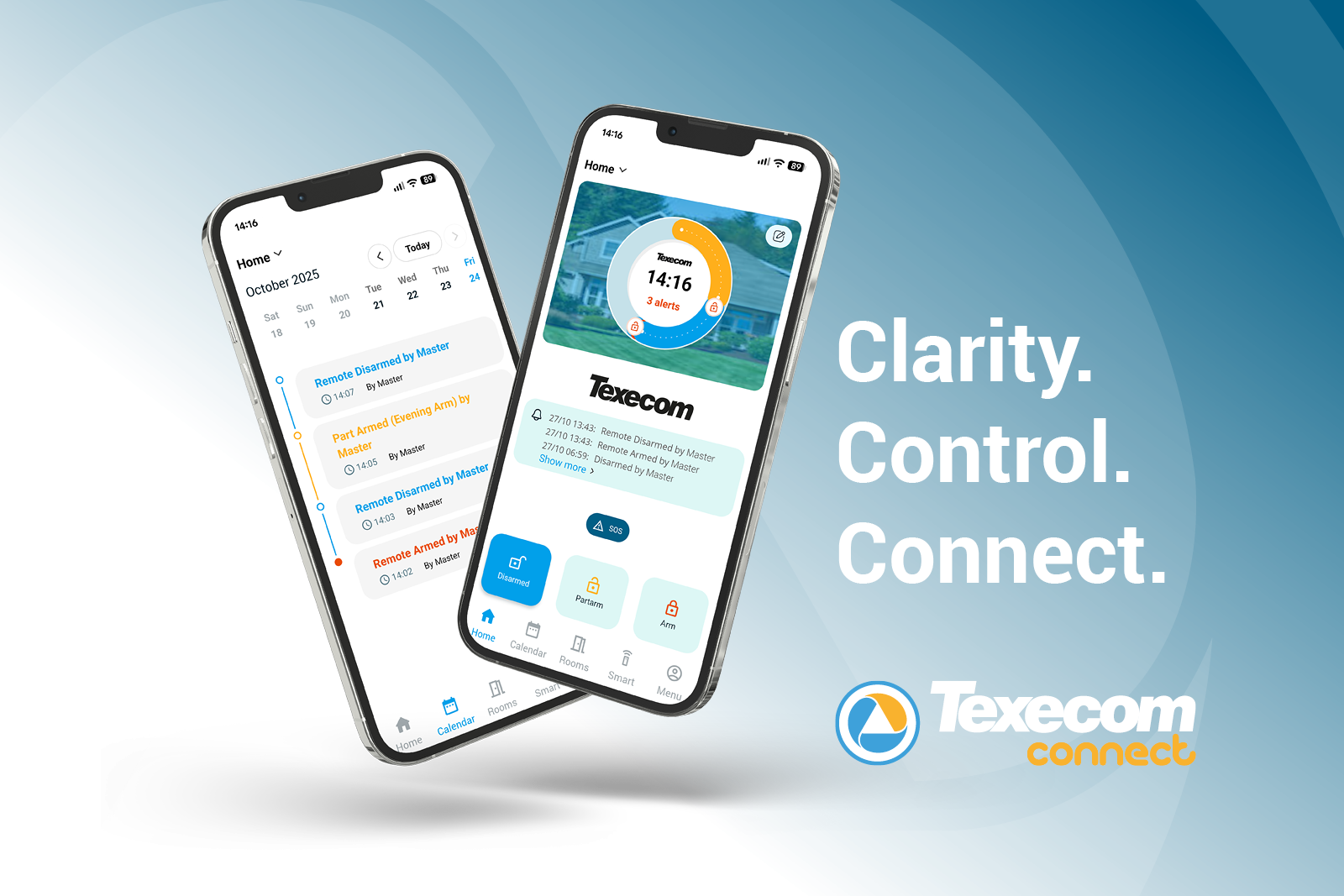
The home screen:
This is one of two screens that has undergone changes:
- Colour
and UI changes
- Area
selection as a menu on the home screen, instead of a swipe function
- New
events section, showing recent events
- SOS
button: Tapping reveals panic, fire, medical and reset buttons
- The
screen changes colour based on the status of the system, e.g red for armed
The calendar screen:
This is the second screen to have minor changes:
- New
date selection for viewing event logs
- Updated
timeline view
The user menu:
- This
has been streamlined. These pages are unchanged from a functionality
perspective
The rest of the app:
- There
has been basic icon and colours updates across the rest of the screens to
reflect the new home screen. These work as they did before, the
functionality has not changed
FAQs – Common
How to login:
Due to the changes to the code base of the App users do need
to log into the app using their existing username and password.
If a user does not know their password, they can simply
press the “forgotten password” button to reset this.
How to enable biometrics:
All apps undergoing a major code change must request the
enablement of biometrics. To do this:
Go to Menu > Manage Users > Panel Users
> Select the user > Use Biometric.
This will now be enabled for all future logins.
How to access reset and emergency buttons:
If this was enabled previously then the feature will work
without you needing to do anything.
The Panic, Fire, Medical and Reset are now behind the SOS
button on the home screen. Based on feedback we will update this text during
the next release to make it clearer to the user.
How to access different ‘Areas’:
Areas are no longer accessed by swiping. The Area list
appears in the top left-hand corner of the home screen.
This supports users with more than 2 or 3 areas, who had fed
back having to scroll through multiple areas was time consuming and
frustrating.
How to change sites:
From the login screen of the app press the house in the top
left corner, select the site you want and then login using the user code for
that system. Biometrics will need to be enabled for this user too.
FAQs – Less frequent
Devices not showing status or temperature:
Simply force closing the app on the phone and opening it
again will resolve this. You do not need to log out.
Arm or Part arm not responding:
Simply force closing the app on the phone and opening it
again will resolve this.
This feature has been heavily tested and does work as
expected.
If this doesn’t work it may be that the app has fallen out
of sync with the panel, particularly if a user has not used the app in some
time.
Simply go to ‘Menu’ and then ‘Sync panel’.
)
)
)
)
)
)